If you're anything like me, you see these neat little pictures that get posted with clothes and accessories that coordinate with Jamberry shields and think, "How did they do that?" As usual, I decided to try to figure it out. It took me an hour to figure out how to add Jams to my picture and save it to my computer, so I decided to help you out and show you how I did it. If you have a better way,
please make your own tutorial. For now, this is how I made this picture:
To start, you're going to need a few things. I recommend using a browser that has multiple tabs so you can switch between websites easier.
- You'll need a membership to Polyvore. This seems pretty obvious, but I figure I should mention it.
- You'll need the Polyvore Clipper. Follow that link. It has really good instructions.
- You'll need a Pinterest account. We'll get to that shortly.
Okay, on with how this works. Polyvore is a community powered social commerce website. Members
curate products into a shared product index and use them to create image
collages called "Sets". That's what you're going to create.
Log into Polyvore and click "Create" and then "Set."
This part is up to you. Select a dress or a top and pants that you can see coordinating with a Jamberry design. You place them on the board by dragging them from the right panel into the left then resizing them to work with your scheme. As you see here, I chose a shirt with Peacock accents and black pants.
You can stop here, but most of the designs you see around social media have some accessories that also coordinate. Create a complete look, but leave room for your Jams!
Now that you've got a look, it's time to add your Jams. The problem is that Polyvore doesn't have Jamberry shields already programmed in, and you can't import them directly from the website. However, you can import them from Pinterest. So, here's what we're going to do.
Open your website (or the generic Jamberry one) and choose a nail shield that coordinates with your outfit. Click the "Pin It" button to the right.
This will open up a dialogue where you choose the image you're going to pin. Choose the Jamberry design.
Now open the Pinterest board you just pinned to and open the same image.
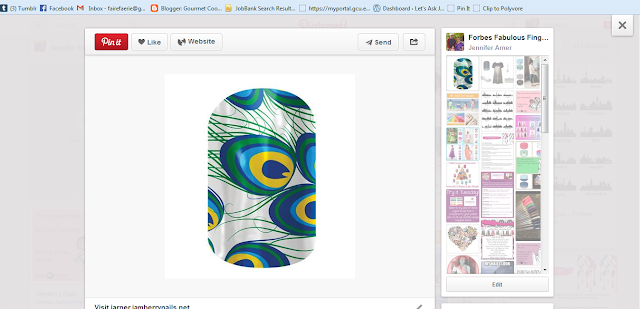
Click the "Clip to Polyvore" link on your bookmark bar and (again) choose the Jamberry design from the dialogue.
Once you've done that, you're going to head back to your Polyvore set creation. Click on the tab that says "My Items" and it will open to show any and all Jamberry designs you've imported in this way.
Now drag the design you want into the left panel like you did with the clothing and accessories.
Click the blue publish button and give your set a name and description. I'm not very good at those yet.
This set will automatically share to Facebook if you keep the check box checked. However, saving the picture can be difficult as the elements are still separated in Polyvore. To fix that, I pin my creation to my Pinterest board and save it from there.
There you go. How to create and save Polyvore images with Jamberry Nail Designs!


