Showing posts with label Tutorial. Show all posts

Sunday, March 2, 2014

Creating a Google Form

I was on the Jamberry Consultants page the other day when someone mentioned using Google Docs to ease the sample request process on "Try it Tuesday"s. This peaked my interest, so I followed the thread until someone mentioned that they were using Google Forms to achieve this goal, and another linked her form. I used this example as a springboard for my own, and made a tutorial on the way.
First, if you don't have a Gmail account, you're going to have to have a Google Drive account. Sign up for that first.
1. Log into your Google Drive account and click the "Create" button.

2. Select "Form" from the drop-down list.
3. You will be taken to another page where you can choose the theme of your form (to make it pretty). Choose whichever suits you most and name your form. Mine is "Forbes' Fabulous Fingers - Sample Request."
4. The next screen will ask you to title your first question. Mine is "First Name."

5. After you name your question, you're going to want to change it. Because we're asking for someone's name, you'll need to change the question type to "Text."
6. You can make a field required by checking the box at the bottom. All address sections are required on mine.
7. Add a new field with the "Add Item" menu.
8. Continue this process until you have all the fields that you need. Mine has "First Name," "Last Name," "Address," "City," "State/Province," and "Zip/Postal Code."
9. Click the "Image" option in the Add Item menu.
10. Add an item of the samples you have to offer. Here's a suggestion.
11. Give your guests the option to choose one or two samples. I require them to pick one and give the option of a second. I used "Choose from list," but you could use "Multiple choice" or "Checkboxes," whatever you want.

Here's a link to my completed form. Once someone submits your form to you, you should get an email with the request and all of the requests should go into a spreadsheet for easy access.

Tuesday, January 14, 2014

Using the Square Marketplace

When I mentioned free tools you can use to better your business, I didn't mention Square because, technically, you pay fees on your credit card transactions, and that's no fun.  However, you can sign up for Square and use their free marketplace for free.  You never have to actually use the card reader to get this benefit, and it's a remarkable benefit!

This is my Square Marketplace page.  I kept it from when I was in the States, and I have never signed up in Canada.  Why?  Because 9 times out of 10, if someone wants to pay with a credit card, I just run it through Jamberry's system and never think about it.  The 10th time, when I'm at a fair and she doesn't want me taking the information down, she just pays cash.  Here's the thing though, every piece of my inventory is on that page.  I give it to customers who just want to know what they can come pick up, and they can look through it and decide if they want to order online or come by and buy something.  This is particularly when I hear from someone new and they ask if I have inventory, or if someone is travelling from out of town and wants to see what I have.

The secondary benefit is that, if you do use the Square application to charge credit cards, you already have your inventory set up to push the name of what your client it buying.  She gets an email with your name, your website, and pictures of what she purchased.

So, today, I figured I'd do a quick tutorial on how to set up items in the Square Marketplace and leave it to you to decide if it's something you want to do.  If you do, we have homework!
  1. Save every Jamberry design to your computer.  Do not do this manually!!!! I seriously spent 6 hours one day saving every loving design to my computer.  I'm glad I did it, but I don't want anyone else to have to ever do it.  Download this file and then ask me how to unzip it. You're welcome, I just saved you 6 hours.  When the new designs come out, I'll just update it and let you guys know.
  2. Create a Square account.  I'll wait.
  3. Once you're there and have gotten to the Dashboard, click Items
     
     
  4. Select "Create New Item"
  5. Under the grey box, select "Edit" then "Add Image".

  6. A dialogue will come up so that you can select your file.  Find a nail design you have in inventory and double click on it.  I'm using Heartstrings because I know that one's on its way here now.
  7. Enter the name of the nail wrap then create its category.  I already had "Dotted Lines" created, but all you have to do is type in the name.

  8. Okay, I checked into this and I'm pretty sure this is allowed because of the functionality of the app.  I always put the price in as well as the Jamberry identifying number.  That's because, if I use the app, the price goes in automatically.  Correct me if I'm wrong
  9. Scroll down and make sure the "Show this item online" button is blue.
  10. IMPORTANT!!!!!  Make sure the button for "Sell this item online" is grey!  We are not allowed to sell our wraps on any site other than Jamberry.  If your customer wants what you have, she can contact you and purchase it!
Optional Homework:  If you decide to make a Square account, post your marketplace link on the team page!  Due January 20.

Wednesday, January 8, 2014

Hosting a Live Facebook Party

Originally Posted by Deanna Sweidel-Diulus

Virtual FB Party Script


  1. (The morning of the party) Now would be the time that I ask my hostess to remind her friends about the live virtual party this evening. If I am friends with her on facebook, I will also share event on her wall.
  2. (About 2 hours before scheduled party time) I am looking forward to Jane's virtual party tonight at 9PM! Just come back to this event at 9PM EST, for 30 minutes of fun. You can even come in your PJ's! Before the party starts, check out my website and look at all of our awesome products. If you cannot attend at the time of the party, please click on my website at www.yoursite.jamberrynails.com and click on Shop, attach your order to “Jane's” party now. She will be thanking you when she receives all of her FREE products.
  3. (About 1 hour before start time) EVEN IF YOU FORGOT TO RSVP, YOU CAN STILL JOIN US! *If you don't want notifications, click DECLINE to your Invitation*
  4. (About 30 mins. before start time) Hi Ladies! I am kicking off my shoes, grabbing something to drink and getting ready to party with you and Jane. See you at 9PM Eastern!
  5. WAHOOOOO.... it’s finally party time!! Thanks so much for meeting us back here for our ONLINE INTERACTIVE party. I promise a fun, fast, and fabulous way to shop! Here’s how it works tonight…it’ll be in four parts, each about 5-7 minutes long. • Part 1 ~ Intros and Faves! • Part 2 ~ Jamberry Nails Front and Center! • Part 3 ~ Shop 'til you Drop • Part 4 ~ Discounts, Door Prizes, and Don’t Miss Out *Simply REFRESH this page or check your NOTIFICATIONS to follow along*
  6. Thank you Jane, for hosting! With at least $150 in orders, Jane will get FREE JAMBERRY Nails products! & HALF-PRICED goodies too! We want to help her GO BIG and earn free shipping and FREE Host Exclusive designs for FREE!!! over the next 3 months!
  7. Here are the host exclusive, Jane can earn for free! (post pic of current 3 months’ designs)
  8. Just for showing up tonight, you’ll have a chance at winning a FREE Jamberry Nails goody from me. You can enter to win this FANTABULOUS GIFT JUST for telling us you're here & letting us know what your favorite Jamberry design is! You can earn more tickets when you give feedback, ask questions, and by ordering. GUEST ROLL CALL!!!! Give a Shout Out!!! Who's here & ready to shop?
  9. ***Anytime anyone posts anything, be sure to ‘like’ it or respond to it!***
  10. Ready for some FUN??? Time to find out about some of our products...it's worth the watch!!! So please- check it out! Here is our application video. I'll be showing you a few more products after the video! So be sure to check your Notifications AND COME BACK HERE! (post video) https://www.youtube.com/watch?feature=player_embedded&v=KaykpuMe53w
  11. Now that you have seen how the wraps work, there's more. We offer select collegiate wraps including sororities, as well as a Nail Art Studio. Designing your own nails is a huge trend right now. There are few other companies who offer this, but their prices cannot touch ours. Also, ours is super easy to use! Just upload any non-copyrighted photo, and you can wear your kiddos on your nails!!!
  12. Maybe you're a polish girl? That's ok! We've got you covered. Introducing our 5-free professional nail lacquer! Lacquer is a high end version of polish. I'd be happy to go over any details with you after the party, if you're interested. You should know that ours does not contain harmful dibutyl phthalate (DBP), toluene, formaldehyde, formaldehyde resin, and camphor. It is also chip resistant! We have 2 fabulous base coats, 12 beautiful colors, and 3 fun top coats!
  13. Maybe your a polish girl? That's ok! We've got you covered. Introducing out 5-free professional nail lacquer. Lacquer is a high end version of polish. I'd be happy to go over any details with you after the party, if you're interested. You should know that ours omits the harmful dibutyl phthalate (DBP), toluene, formaldehyde, rormaldehyde resin, and camphor. It is also chip resistant!
  14. Our newest addition to the Jamberry line is Indulgence! Everyone deserves a little pampering. This is a hand care system that is made in the USA, paraben free, sulfate free, vegan (with exception of the Quench- it contains beeswax) and infused with Biotin to promote healthy skin and nails. Did I mention it smells AMAZING!!!!!!!!!!! Very lightly scented! The set includes a liquid hand soap, sugar scrub, hand crème and balm.
  15. To grab another ticket into the drawing, LIKE my Business Page - Go to my business page so you can stay updated ...or if you are already a fan, leave a comment on the page www.facebook.com/yourjampage
  16. Here’s the Jamtastic part! You can shop directly at http://yoursite.jamberrynails.com Once you are at my webpage - go to shop, and attach your party to “your hostess” during checkout! Thanks a bunch!!! Your order will arrive at your front door within a few weeks!
  17. (Here is where I would draw a winner for door prize- Announce it!)
  18. THANKS AGAIN! Remember to order at http://yoursite.jamberrynails.com & choose Jane’s name as the HOST NAME at checkout!
  19. There’s only one part left so we’ll see you back here in a few...http://yoursite.jamberrynails.com
  20. So here I would give them a few minutes to place their orders. I would also ask if anybody would like to see a particular wrap on the hands. I usually would post some on the days leading up until party. I also filter through the posts, as most of your guests will be asking questions throughout the party.
  21. Ladies, I would be completely selfish if I did not share this amazing opportunity with you. It may or may not be for you. Jamberry has changed my life in so many ways. No, it isn't me just saying this. This is a true story. I would love to share my story with any of you after the party. If you feel this is something you could do or would just like more info, please don't hesitate to message me directly.
  22. This is my last "official" post. Thanks so much for being a part of this tonight. I really appreciate you! If you want to invite any friends of yours to order for Jane's party, please share my webpage with them. Please message me if you would like to do your own Jamberry Nails party. Ask Jane - it was super easy!! The party will be "open" until 10:30 p.m. 12/19. Tell your friends!!!
  23. Here, I would offer to stay around and answer questions for a bit. I also tell them to feel free to post a question when they think about it, and I will keep checking back over the next 2 days. I can do these parties start to finish in 30-35 minutes on average. Every crowd is different. I do ask that they hold questions until the ordering part. That way the party doesn't drag on, and I can go through them as we finish up.

**Virtual parties should last around 30 minutes!**

No homework today!

Tuesday, December 3, 2013

Using Polyvore

If you're anything like me, you see these neat little pictures that get posted with clothes and accessories that coordinate with Jamberry shields and think, "How did they do that?"  As usual, I decided to try to figure it out. It took me an hour to figure out how to add Jams to my picture and save it to my computer, so I decided to help you out and show you how I did it.  If you have a better way, please make your own tutorial.  For now, this is how I made this picture:
To start, you're going to need a few things.  I recommend using a browser that has multiple tabs so you can switch between websites easier.
  1. You'll need a membership to Polyvore.  This seems pretty obvious, but I figure I should mention it.
  2. You'll need the Polyvore Clipper.  Follow that link.  It has really good instructions.
  3. You'll need a Pinterest account.  We'll get to that shortly.
Okay, on with how this works.  Polyvore is a community powered social commerce website. Members curate products into a shared product index and use them to create image collages called "Sets".  That's what you're going to create.

Log into Polyvore and click "Create" and then "Set."

This part is up to you.  Select a dress or a top and pants that you can see coordinating with a Jamberry design.  You place them on the board by dragging them from the right panel into the left then resizing them to work with your scheme.  As you see here, I chose a shirt with Peacock accents and black pants.
You can stop here, but most of the designs you see around social media have some accessories that also coordinate.  Create a complete look, but leave room for your Jams!
Now that you've got a look, it's time to add your Jams.  The problem is that Polyvore doesn't have Jamberry shields already programmed in, and you can't import them directly from the website.  However, you can import them from Pinterest.  So, here's what we're going to do.
Open your website (or the generic Jamberry one) and choose a nail shield that coordinates with your outfit.  Click the "Pin It" button to the right.
This will open up a dialogue where you choose the image you're going to pin.  Choose the Jamberry design.
Now open the Pinterest board you just pinned to and open the same image.
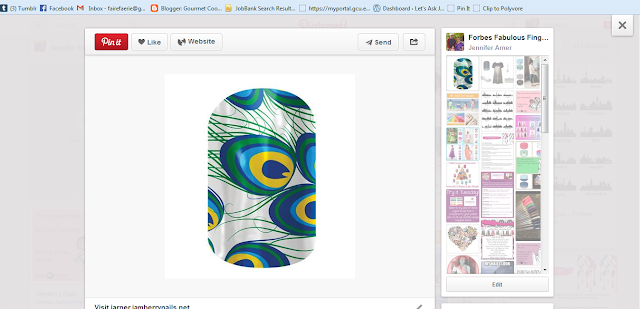
Click the "Clip to Polyvore" link on your bookmark bar and (again) choose the Jamberry design from the dialogue.
Once you've done that, you're going to head back to your Polyvore set creation.  Click on the tab that says "My Items" and it will open to show any and all Jamberry designs you've imported in this way.
Now drag the design you want into the left panel like you did with the clothing and accessories.
Click the blue publish button and give your set a name and description.  I'm not very good at those yet.
This set will automatically share to Facebook if you keep the check box checked.  However, saving the picture can be difficult as the elements are still separated in Polyvore.  To fix that, I pin my creation to my Pinterest board and save it from there.
There you go.  How to create and save Polyvore images with Jamberry Nail Designs!

Sunday, November 24, 2013

How to Schedule Your Facebook Posts

Now, we all know how important having a great Facebook fan page can be for your business.  You can direct your customers to "Like" you so they can be kept up to date on your specials, exclusive offers, and so much more!  However, the downfall of many (or at least me) is that we can forget to post something on our page at least once a day.  Even if you post an inspiring quote or a funny cartoon (nothing political or sexual, mind you), it keeps people seeing that you are posting and that keeps them interested.
Recently, I logged into my Facebook fan page for the first time in "I don't know" (Note:  This points out my major problem, I can always think of something to promote, but I often forget to do it!) and I noticed a new feature - Scheduling!  I leapt for joy.  Now I can make my page work for me!
The ability to schedule your posts is going to change your page if you actually do it.  A little research tells me that posts can be scheduled up to 6 months in advance, but you don't want to be doing this.  Jamberry changes too often to do more than 2-3 months without checking in and adding things.  Even then, you should expect a few hours if you're going to schedule that many posts!  This is a great way to keep customers aware of products, even while you take a holiday break!  So, here's what you're going to do the next time you have a couple of hours.  It doesn't take a ton of concentration, you could even watch a movie!
  1.  Navigate to your Facebook fan page.  Note:  This is different than your regular Facebook profile.  If need be, I'll post a tutorial on how to create your own page sometime in the future.

  2. Create the post you intend.  I put a tip for you in the box.  No matter what you're putting up, whether it has to do with Jamberry or not, ALWAYS give your client your website.  That way, they always have a link to it on their timeline somewhere.
  3. After you've created your post, click the clock in the lower left-hand corner.
  4. A new line will appear with scheduling options!
  5. Click the date and a calendar will pop up to help you schedule your post for someday in the future.
  6. Once you've selected your date, you can specify a time for the post to go out.  This can be determined at 5 minute intervals.  Two things to keep in mind:
    The time you choose is your own time zone.
    If you don't schedule a time, it will automatically schedule as the same time you create the post on the date you chose.  For example, if you're typing your post at 10:45 AM and schedule it for Christmas day without a time.  It will post at 11:00 AM on December 25.

  7. Notice above that, if I type "5" into the box, Facebook assumes that I'm referring to 5 PM instead of 5 AM.  Good guess on Facebook's part, unless you have a ton of friends who don't sleep.  If you want to change whether the post goes out in the morning, keep typing and, eventually, you'll be allowed to select between AM and PM.

  8. Now that you've created and scheduled your post, all that's left is to Schedule it!
     
  9. A neat little box will come up telling you that you have successfully scheduled your post and that you can find it any time in your Activity Log.  Your Activity Log is available from this notification or at the top of your page under "Edit."
  10. When you look in the activity log, you'll see all of the posts you've scheduled and the last few you've actually posted. In the upper-right hand corner of each post, you'll find a carrot.  I drew it in because I could not for the life of me get it to actually appear in a screen shot.
  11. Clicking on that carrot will give you options for that post such as changing the date and time, publishing right now, or deleting the post all together.